
By MTL Smart Solutions
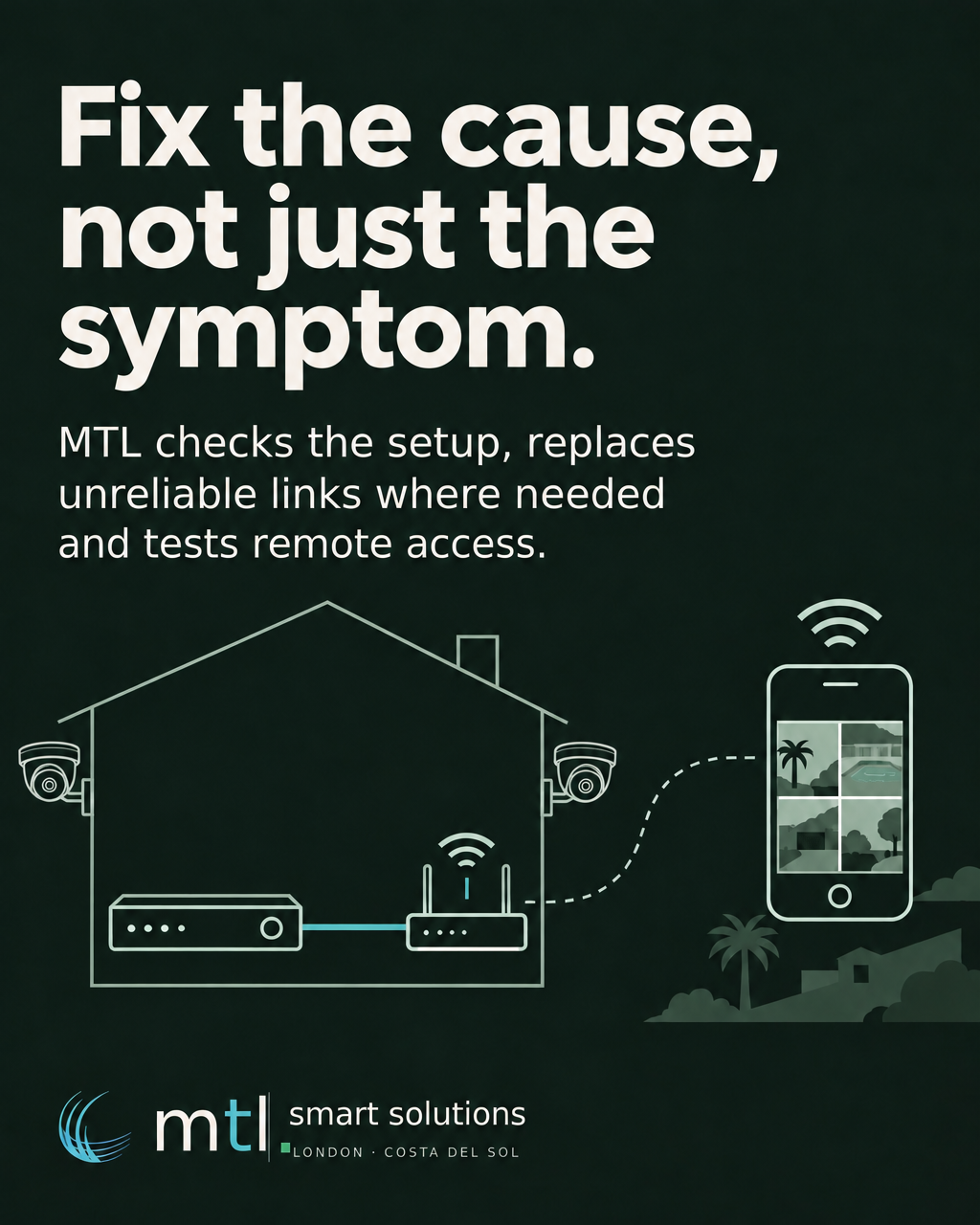
Your CCTV app opens, but the live picture will not load. Before replacing cameras, check whether the problem affects the equipment at the property, your phone, or the connection between them.
For owners and property managers on the Costa del Sol, that distinction matters when you are away. A failed remote view does not automatically mean recording has stopped. Equally, an old thumbnail is not proof that the cameras are still recording.
1. Confirm what works at the property
If someone you trust is on site, ask them to check a current live picture and recent playback using the normal authorised viewing method. Note whether one camera is affected or every channel.
If local viewing also fails, the camera, recorder, power supply or local network may need attention. Missing recordings may involve recording settings or storage. These are different problems from an app that works at home but fails when you leave.
2. Compare the same phone on Wi-Fi and mobile data
When you are at the property, try the app on its Wi-Fi, then switch Wi-Fi off and try mobile data. First confirm that your phone can load an ordinary website and that the CCTV app is allowed to use mobile data.
If viewing works on the property’s Wi-Fi but not mobile data, that is a useful clue about remote access. It does not identify the fault on its own. If another authorised user can connect, compare the account permissions, app version and phone connection before changing the installation.
3. Check the property’s internet connection
Remote viewing needs a working connection at the property as well as on your phone. Ask someone on site to check internet access and the recorder’s visible power and network status. A recently replaced router, changed internet provider or power interruption is worth mentioning to your installer.
A local recorder may continue recording during an internet outage, but this depends on the system and its power supply. Check rather than assume. Avoid factory resets or restarting equipment remotely if nobody can restore access on site.
4. Read the error before changing settings
“Device offline”, a sign-in error and a picture that buffers are different symptoms. Save the exact wording and the time it happened.
- Sign-in or access error: check the correct official app, account and property are selected. Ask the system administrator to confirm your individual viewing permissions.
- Device offline: check the property’s internet and the device’s connection before assuming the camera needs replacing.
- Picture loads but freezes: investigate the connection at both ends and the live-view stream settings.
Use the manufacturer’s supported account-sharing method where available. Do not circulate an administrator password between owners, guests and managing agents. Install app updates from the official app store.
5. Try a lighter live-view stream
If your app offers a lower-bandwidth live-view mode, try it. This can help distinguish a streaming problem from a complete loss of access. Change the viewing stream only; do not reduce recording quality simply to make your phone preview load.
Footage must upload from the property and download to your phone. Cloud backups, other camera streams and video calls can compete for upload capacity. Poor mobile reception where you are viewing can also cause trouble.
An upload test should be run at the property. A speed test on your phone abroad measures a different connection. Repeat checks when the fault occurs if practical: one good result does not prove reliable performance all day.
When to ask an installer to investigate
If these checks do not explain the fault, have the existing equipment and remote-access method assessed. Depending on the system, access may use a manufacturer’s service or a professionally configured VPN. Blocking unsolicited incoming connections is normal router protection; it is not, by itself, a fault.
Do not disable the firewall or expose a recorder to the internet as a quick fix. Router settings, device compatibility, service availability and the link between the recorder and router may need checking. Firmware updates should follow guidance for the exact model, with settings backed up and on-site support available where needed.
Intermittent viewing does not automatically mean the whole network needs replacing. The right next step depends on the evidence.
How MTL can fix the underlying problem
MTL Smart Solutions can test the recorder’s connection, the property’s internet service and the supported remote-viewing setup to identify where access breaks down. We then recommend work that addresses the fault, rather than replacing cameras by default.
If an unreliable wireless link connects the recorder to the network, we can assess retrofitting network cabling back to the router or switch. We look at suitable existing ducts and discreet cable routes, so an existing property does not necessarily need a full renovation. A wired connection can remove that wireless weak link; it cannot repair an internet outage or an account problem.
Where the issue is configuration, we can check compatible equipment and the manufacturer-supported access method. If ageing equipment no longer supports a suitable remote-viewing service, we can advise on a targeted upgrade and check compatibility before installation.
After the work, we test remote viewing from outside the property’s Wi-Fi, as well as local live view and recent playback. The aim is a system you can use confidently when you are away, with clear guidance on accessing it.
What to send us before a survey
MTL Smart Solutions can assess the connection, existing equipment and layout before recommending changes. To help us understand the problem, tell us:
- Your town on the Costa del Sol and whether you are currently at the property.
- The camera or recorder make and model, if known.
- The exact app error and whether one camera or all cameras are affected.
- Whether live viewing and recent playback work locally.
- Any recent router, provider, phone or account changes.
Please do not include passwords, verification codes or camera setup QR codes in your enquiry.
Request a free CCTV and network survey with MTL Smart Solutions. Tell us what happens when you try to connect, so we can discuss the appropriate next step for your property.